How to Get Ncell eSIM in Nepal: Upgrade & Setup Guide
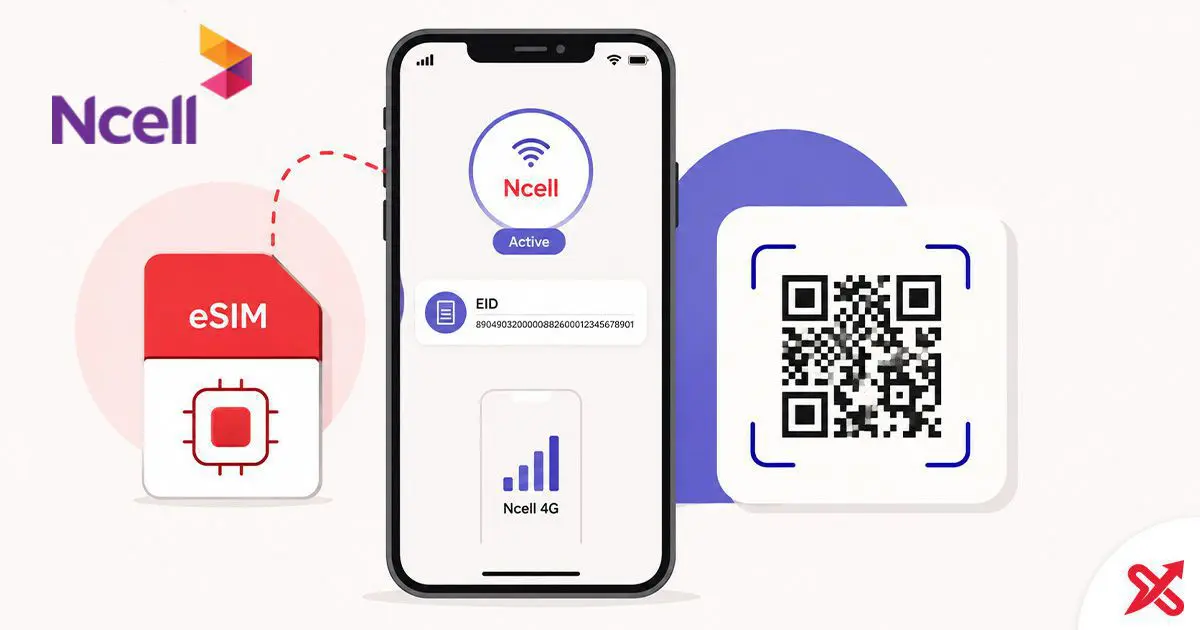
If you want to replace your physical Ncell SIM with an eSIM, first check whether your phone supports eSIM by dialing *#06#. If an EID number appears, your device supports eSIM. You then need an original identity document for verification at an official Ncell Centre, unless an Ncell online registration option is currently available for your request.
An eSIM lets your Ncell number work through a built-in SIM component in your phone instead of a removable plastic SIM card. The upgrade keeps your existing Ncell number, and research indicates that your active main balance, voice packs, and data plans are preserved during the physical SIM-to-eSIM conversion.
💡 Key Takeaways
- Check your phone's EID before requesting an Ncell eSIM.
- Bring your original identity document when visiting an Ncell Centre for verification.
- A physical Ncell SIM upgrade to eSIM is free, while a new Ncell eSIM connection costs NPR 100.
- Scan the Ncell QR code from your phone's cellular settings to download the eSIM profile.
- A new QR code may be required when moving your Ncell eSIM to another phone.
What is Ncell eSIM and which devices are compatible?
An eSIM, or embedded SIM, is a SIM profile stored digitally in a compatible device. You don't insert a physical SIM card into the phone. Ncell provides an eSIM profile that you download to the phone using a QR code.
Your phone needs eSIM-capable hardware. Supported device families include compatible models from:
- Apple iPhone
- Samsung Galaxy
- Google Pixel
Model support depends on the specific device, so check the phone itself rather than assuming that every model in a product family supports eSIM.
A quick hardware check is available through the phone's dialer. Enter *#06#. If the screen displays an EID alongside the device's IMEI information, the phone has the hardware needed for eSIM.
How to check your phone's EID for Ncell eSIM support
The EID, or Embedded Identity Document, identifies the eSIM hardware in your phone. It is normally shown as a 32-digit number.
On an iPhone:
- Open Settings.
- Tap General.
- Tap About.
- Look for EID in the device information.
On Android:
- Open Settings.
- Open About Phone.
- Go to Status information or the equivalent device status section.
- Look for the EID entry.
You can also use the faster *#06# check. If an EID appears, your phone supports eSIM hardware.
The EID belongs to the device's eSIM hardware. It isn't the same as your Ncell mobile number or IMEI.
Ncell eSIM upgrade requirements and pricing in Nepal
The cost depends on whether you're converting an existing Ncell connection or getting a new number.
| Request | Cost |
|---|---|
| Existing physical Ncell SIM to eSIM upgrade | NPR 0 |
| New Ncell eSIM connection | NPR 100 |
The new connection price includes the standard starter pack balance and benefits described in the supplied research.
For an existing Ncell number, bring an accepted original identity document for verification. The supplied requirements include:
- Original Nepali Citizenship Card
- Passport
- Driving License
Ncell Centre verification and biometric requirements apply when registering or processing the eSIM request. Keep your original document with you when you visit the centre.
The eSIM upgrade doesn't require you to give up your existing Ncell number. The supplied research states that the active main balance, voice packs, and data plans remain with the converted connection.
How to upgrade to Ncell eSIM: step-by-step process
The standard route is to request the conversion through an official Ncell Centre. Ncell may also provide an online registration form or app-based process when that option is active.
Method 1: Upgrade at an Ncell Centre
Before leaving for the centre, check your phone's EID.
- Dial
*#06#on your phone. - Confirm that an EID appears.
- Take your original citizenship card, passport, or driving license.
- Visit an official Ncell Centre.
- Request an upgrade from your physical Ncell SIM to an eSIM.
- Complete the required identity verification and biometric process.
- Receive the eSIM QR code provided for your connection.
- Keep the QR code card safe until you've completed activation.
- Scan the QR code from your phone's cellular or SIM settings.
- Wait for the eSIM profile to download and activate.
If you're converting an existing number, check the Ncell connection after activation before leaving the centre. Confirm that the phone shows network service and that your number works.
Method 2: Use the Ncell online option when available
Ncell may make an online eSIM registration form available through its website or Ncell App. Availability can change, so don't assume that an online form is always open.
When the online option is active, follow the registration instructions shown by Ncell and complete the required identity verification. Telecom identity verification requirements still apply.
An online form should not be treated as a guarantee that the entire process can be completed without physical verification. If Ncell directs you to an Ncell Centre, take your original identity document and complete the required verification there.
QR code safety: Treat the Ncell eSIM QR code as sensitive activation information. The supplied research states that the QR code can only be scanned once. Don't share it with another person or use it casually on another device.
Activating Ncell eSIM on iPhone
Once you have the Ncell QR code, you can add the mobile plan from the iPhone's cellular settings.
- Open Settings.
- Tap Cellular.
- Select Add eSIM.
- Choose the option to use a QR code.
- Scan the Ncell QR code.
- Wait while the iPhone downloads the Ncell cellular plan.
- Give the plan a label, such as Primary or Secondary, if you use more than one line.
- Select your preferred default line for voice calls.
- Select the line you want to use for cellular data.
- Confirm that the Ncell line connects to the network.
If you already have another cellular plan on the iPhone, pay attention to the labels and default line settings. This helps you avoid accidentally using the wrong line for calls or mobile data.
Activating Ncell eSIM on Android
Android menus vary between manufacturers. On supported Samsung phones, the relevant options are generally under the SIM manager in Settings > Connections. On Google Pixel devices, look under Settings > Network & internet.
For a compatible Android phone:
- Open Settings.
- Open SIM manager, SIMs, or the corresponding mobile network section.
- Choose the option to add a mobile plan or eSIM.
- Select the QR code scanning option.
- Scan the Ncell QR code.
- Allow the phone to download the Ncell eSIM profile.
- Confirm the new Ncell line.
- Enable the line and mobile data as needed.
- Check that the phone connects to the Ncell network.
The exact menu names can differ between Samsung, Google Pixel, and other Android devices, so use the eSIM or SIM management section if the wording differs.
Post-activation verification and managing your Ncell line
Don't leave the Ncell Centre immediately after the eSIM installation. Check that the new profile actually works.
Start with the network connection:
- Check for Ncell signal bars.
- Confirm that the mobile network connects.
- Check that the Ncell line is enabled in your phone's SIM settings.
- Verify your Ncell mobile number.
- Check your balance and active services.
To verify your mobile number, see the SajiloX guide on how to check your Ncell number.
Your eSIM doesn't change the basic account relationship with your Ncell number. The supplied research states that an existing connection keeps its active main balance, voice packs, and data plans after the physical SIM is converted to eSIM.
You can also continue managing your Ncell account and balance from the eSIM line. If you need to send mobile credit to another Ncell number, use the SajiloX guide on how to transfer balance in Ncell.
Troubleshooting Ncell eSIM issues and device transfer rules
An eSIM activation problem can come from the QR code, device compatibility, or the installation process.
QR code won't scan: First confirm that the phone supports eSIM and has an EID. Make sure you're scanning the Ncell QR code through the phone's eSIM setup option rather than a normal camera or QR reader.
Invalid profile or activation error: Don't repeatedly attempt to use the same QR code. The supplied research states that an Ncell eSIM QR code can only be scanned once. If the profile has already been downloaded or the QR code has been used, you may need assistance from Ncell.
Moving to a new phone: An Ncell eSIM QR code isn't reusable across multiple devices. If you buy a new compatible phone, you need to request an eSIM transfer or reissue through an Ncell Centre. The new device's EID matters for the replacement eSIM setup, and Ncell issues a new QR code for the new device.
Factory resetting your phone: The supplied research states that an eSIM profile survives a factory data reset on iOS and Android unless you explicitly select the option to delete the eSIM profile. Check the reset options carefully before confirming the reset.
Lost or stolen phone: Treat a lost eSIM phone like a lost physical SIM device. Contact Ncell and follow its process to handle the affected connection and obtain a replacement eSIM, if required.
The EID itself is part of the phone's eSIM hardware. A factory reset doesn't change the device's EID.
Ncell eSIM activation checklist
Before requesting the upgrade:
- Check
*#06#and confirm that an EID appears. - Confirm your phone supports eSIM.
- Keep your original identity document ready.
- Visit an official Ncell Centre if physical verification is required.
- Keep the QR code secure.
- Scan the QR code through your phone's eSIM settings.
- Confirm Ncell network service after activation.
- Verify your mobile number and balance before leaving the centre.
If you're changing phones later, don't expect to reuse the original QR code. Request the required eSIM transfer or replacement through Ncell.
Frequently Asked Questions
How much does Ncell eSIM cost in Nepal?
Upgrading an existing Ncell physical SIM to an eSIM is free, while a new Ncell eSIM connection costs NPR 100.
Can I get Ncell eSIM online in Nepal?
Ncell may provide an online registration form through its website or Ncell App when the option is active. Identity verification requirements still apply, and Ncell may require you to visit an Ncell Centre.
How do I check if my phone supports Ncell eSIM?
Dial *#06#. If an EID appears alongside the IMEI information, your phone supports eSIM hardware. You can also check the EID in your phone's device information.
What happens to my Ncell eSIM if I buy a new phone?
The Ncell eSIM QR code cannot be reused across multiple devices. When moving to a new phone, request an eSIM transfer or reissue through an Ncell Centre and obtain a new QR code.
What documents do I need for an Ncell eSIM?
The supplied requirements include an original Nepali Citizenship Card, passport, or driving license for identity verification.
Does an Ncell eSIM upgrade keep my existing number and balance?
Yes. The supplied research states that an existing physical SIM to eSIM conversion preserves the active Ncell number, main balance, voice packs, and data plans.
Can I delete my Ncell eSIM during a factory reset?
The supplied research states that the eSIM profile survives a factory data reset unless you explicitly select the option to delete the eSIM profile.

SajiloX
SajiloX creates practical online tools and guides for everyday digital tasks. Our content includes step-by-step tutorials, useful comparisons, and clear explanations designed to help you complete tasks and make informed choices. We focus on accurate, practical information, with testing and verification included when applicable.


