How to Calculate Tip on iPhone Calculator
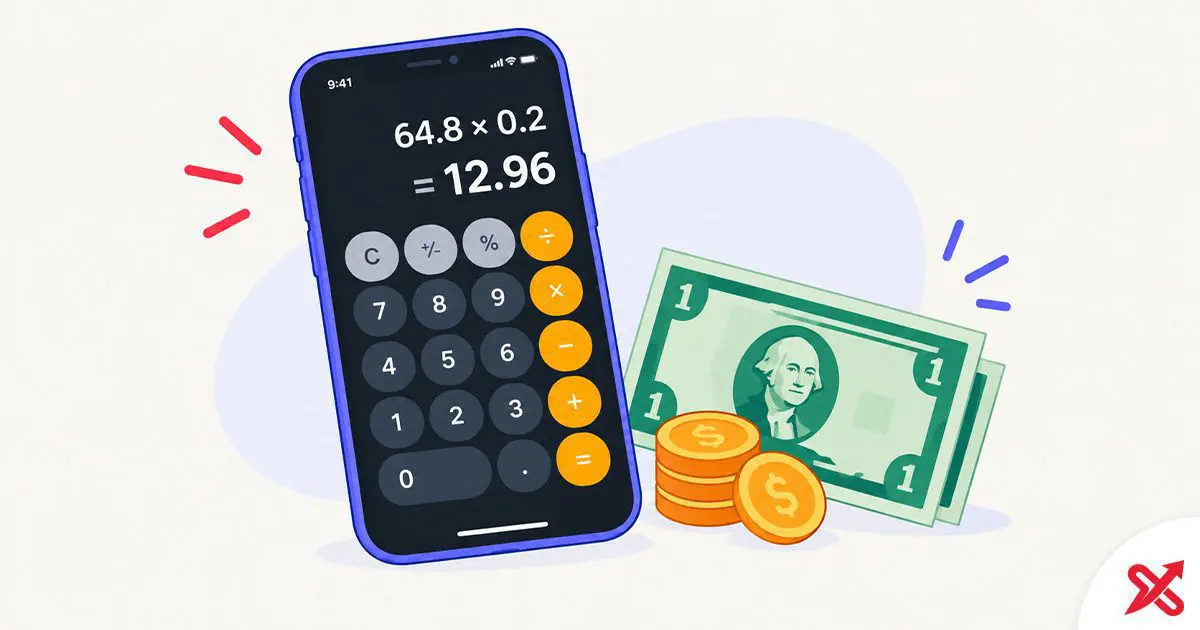
To calculate a tip on the iPhone calculator, type the bill, tap the multiply key, enter the rate as a decimal, and tap the equals key. The screen then shows the tip amount in one run.
The whole run takes four taps. On a $64.80 dinner, a 20% tip reads as 0.20, and 64.8 x 0.2 equals 12.96, so the display shows $12.96. Type 1.2 instead of 0.2 and it returns $77.76, the total with the tip. Double-check any amount in the Tip Calculator before you sign the card reader.
The iPhone Calculator is the arithmetic app built into every iPhone, and it handles tips, totals, and splits without a download. This guide covers the button runs that stay reliable, the rates worth memorizing, and the iOS 18 features that make the app faster than a dedicated tip app.
💡 Key Takeaways
- Type the bill, multiply by the rate as a decimal, and tap equals: on a $64.80 bill a 20% tip is $12.96, and 1.20 instead of 0.20 returns the total.
- The iPhone percent key has changed across iOS versions and does not match a standard calculator, so the decimal method stays reliable.
- iOS 18 adds Math Notes, currency conversion, a results history, and copy-on-hold to the Calculator app.
The iPhone Calculator Tip Trick: Multiply by the Decimal
A percentage is a number divided by 100, so 20 percent is 0.20 in decimal form. Multiplying the bill by that decimal gives the tip: 64.8 x 0.2 equals 12.96. The same run works on every iPhone, every iOS version, and every other calculator on the market.
The percent key is the unreliable corner. Apple has changed how the percent key behaves across iOS versions, and reports from iPhone users disagree on the result a single key press returns. A trick that works on one phone can show a different number on yours. On a standard pocket calculator, 100 plus 10% often means 100 plus 10, which lands on 110. Apple's calculator has followed its own rules across releases, and the two approaches do not always agree.
The decimal method returns the same answer everywhere, which makes it the one to use at a restaurant. Type the pieces in the order they appear on the keypad:
- Bill: 64.8
- Multiply key: x
- Rate as a decimal: 0.2
- Equals key: =
The display reads 12.96. Memorize these four taps and the percent key stops mattering.
Step by Step: Tip and Total on One Bill
- Open the Calculator app on your iPhone. It sits on the home screen, and the lock screen shortcut opens it just as fast on some models.
- Type the bill amount you will tip on. When you tip the pre-tax subtotal, key the subtotal; when you tip the final total, key that figure instead. A $64.80 check becomes 64.8.
- Tap the multiply key, type the decimal rate, and tap equals. With 0.2 the display reads 12.96, which is the 20 percent tip on $64.80.
- Repeat the run with the with-tip multiplier for the grand total. Type 64.8, tap x, type 1.2, and tap equals. The display reads 77.76, the bill plus a 20 percent tip.
The 1.2 shortcut is the same math in one step: 1 stands for the whole bill, 0.2 stands for the tip, and a single multiply returns the grand total. Rates other than 20 percent use their own 1-shaped figure: 1.15, 1.18, and 1.25 work the same way.
Most people round a tip when the card reader prompts, and the table below does the rounding for you.
Tip Rates to Type Into Your iPhone Calculator
The common US range for sit-down service runs 15 to 20 percent on the pre-tax subtotal, according to the Emily Post Institute. The table shows the decimal to type and the result it returns on a $64.80 bill.
| Tip rate | Keypad (tip) | Tip on $64.80 | Keypad (total) | Total with tip |
|---|---|---|---|---|
| 15% | x 0.15 | $9.72 | x 1.15 | $74.52 |
| 18% | x 0.18 | $11.66 | x 1.18 | $76.46 |
| 20% | x 0.20 | $12.96 | x 1.20 | $77.76 |
| 25% | x 0.25 | $16.20 | x 1.25 | $81.00 |
All values current as of September 2026. Ranges follow US tipping practice, which is the reference SajiloX uses for global tipping topics.
For a rate outside the table, type the bill, tap the multiply key, and enter the rate as a decimal with two digits: 17 percent becomes 0.17, and its with-tip version 1.17.
iOS 18 Calculator Features That Speed Up Tipping
The Calculator on iOS 18 and later turns into a pocket tool for the whole bill, and Apple documents every piece in the iPhone User Guide. Tap the Change Mode button to switch between Basic, Scientific, and Math Notes, or turn on Convert for unit and currency conversion. Math Notes solves typed math, draws graphs, and converts units and currency inside the note, so a group can split a dinner by typing 77.76 / 4 right into the app. The results history keeps every calculation, and touching and holding a result copies the number into Messages or Notes. Ask Siri "what's 18 percent of 225" and the answer arrives without the app opening. The same features run on iOS 18 and later across supported iPhones.
Three more touches help at the table:
- Swipe down on the display to bring back an earlier result.
- Touch and hold any result, then tap Copy, to paste it into a message.
- Tap equals again to repeat the last operation, so 2 doubles to 4, then 8.
The history and copy features matter most for a group: one person works the total, sends the number, and no one rekeys it.
Split a Bill and Cross-Check the Math
Splitting a check is the same run with one more step. Multiply the bill by the with-tip figure, then divide by the number of guests: 64.8 x 1.2 equals 77.76, and 77.76 / 3 equals 25.92, so each of three guests pays $25.92. Two taps of the equals key complete the divide part on the iPhone.
The SajiloX Tip Calculator works the same math with the per-person split built into one screen, so the group can read the number instead of watching you tap. To name the rate a guest left, use the Tip Percentage Calculator; to work backward from a paid total to the original bill, the Reverse Tip Calculator is the one. All three run in a browser with nothing to install.
Quick cross-check without the phone: move the decimal one place left for 10 percent, then double it for 20 percent. On $64.80 that gives 6.48 and 12.96, which matches the calculator. For the full formula guide behind the button runs, see how to calculate a tip.
Frequently Asked Questions
How do I calculate a tip on my iPhone calculator?
Type the bill, tap the multiply key, enter the rate as a decimal, and tap equals. A $64.80 bill at 20% reads 0.20 and returns $12.96.
Does the iPhone calculator have a tip button?
No. Apple's Calculator has no tip mode or tip button. Multiply the bill by the decimal rate instead.
Why does the percent key give a different result than a normal calculator?
Apple has changed how the percent key behaves across iOS versions, so it does not match a standard calculator. The decimal method avoids the issue and works on every version.
How do I work out a 20% tip on my iPhone?
Multiply the bill by 0.2. On $64.80 the screen shows $12.96, and 1.2 shows the total with tip, $77.76.
How do I get the total with the tip included on an iPhone?
Multiply the bill by 1.2 for a 20% tip so the bill and tip land in one result. Other rates use 1.15, 1.18, 1.25, and so on.
Can the iPhone calculator convert currency for a tip?
Yes. Turn on Convert from the Change Mode button to switch units and currency while you calculate.
Where did my last tip calculation go?
The Calculator keeps a history. Swipe down on the display to see previous results, and touch and hold a result to copy it.
Is the scientific calculator still on the iPhone?
Yes. Tap the Change Mode button and choose Scientific on iOS 18 and later.

SajiloX
SajiloX creates practical online tools and guides for everyday digital tasks. Our content includes step-by-step tutorials, useful comparisons, and clear explanations designed to help you complete tasks and make informed choices. We focus on accurate, practical information, with testing and verification included when applicable.


